マニュアル~データ抹消 for iPhone

ホーム/マニュアル/マニュアル~データ抹消 for iPhone

はじめに~データ抹消

はじめに ~iPhoneデータを完全抹消!!

すべてのデータを消去

iOSデバイス上のテキストファイル(連絡先、テキストメッセージ/iMessages、通話履歴、カレンダー、メモなど)、メディアファイル(ミュージック、ムービー、写真など)、ドキュメント、個人設定を永遠に消去できます。

iPhone/iPad/iPodを対応

あらゆるすべてのiOSデバイス(iPhone 6s Plus、iPhone 6s、iPhone 6 Plus、iPhone 6、iPhone 5s/5c/5/4S/4/3GS、iPad、iPod touch)を対応します。

三つの消去レベル

低 (一回)、中(二回)や高(三回)の消去レベルよりデータを消去できます。データの復元が不可能!
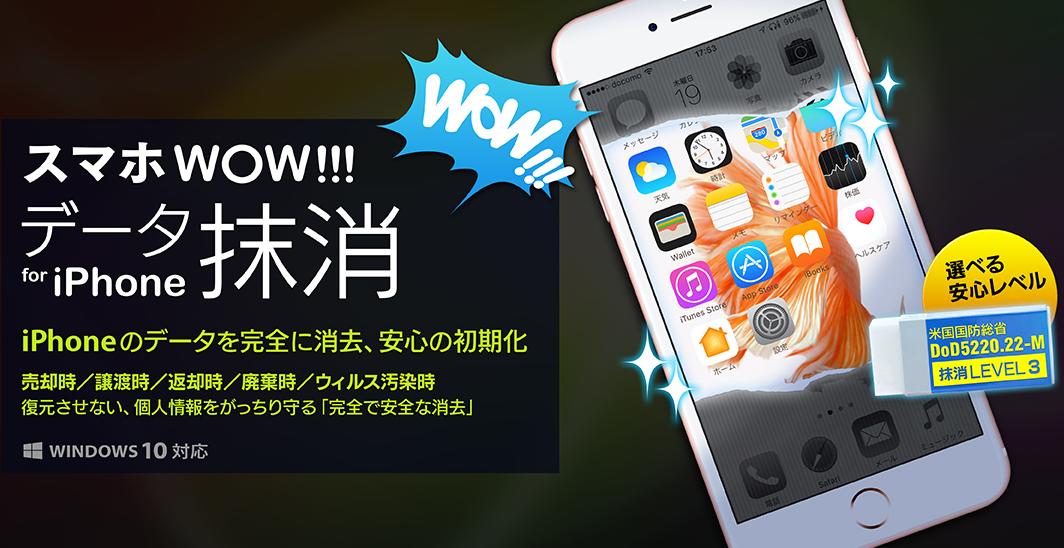
スマホWOW!!!(スマホワオ) データ抹消 for iPhone マニュアル - iPhoneデータを完全抹消!

iOS端末のデータを消去する方法

iOS端末のデータを消去する方法

スマホWOW!! データ抹消 for iPhone の使い方はとても簡単
3ステップで、あなたのiOSデバイスのデータを完全に消去します。

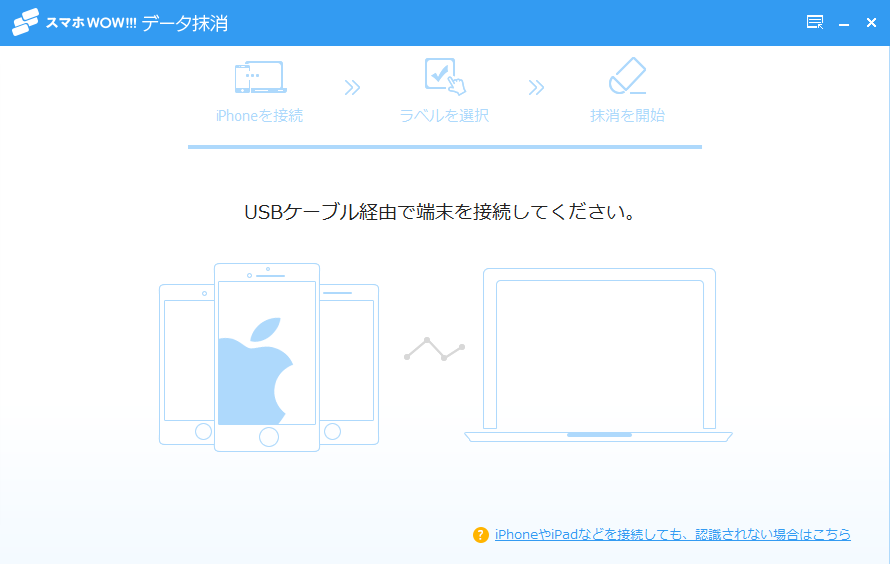
STEP1. iOS端末の接続

ライトニングケーブルを経由してiOSデバイスをPCに接続してください。
接続完成したら、プログラムが自動的にデバイスを検出します。
(復数のiOSデバイスを接続可能)

スマホWOW!! データ抹消 for iPhone

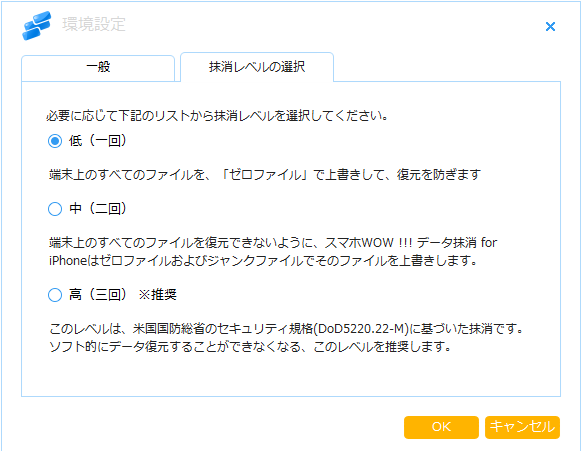
STEP2. 消去レベルを選択

iOSデバイスが識別されると、
「環境設定」にて消去モードは選択可能です。
消去するレベルは、低、中、高の三つのレベルが選択可能です。
抹消が完了するのに要する時間は、レベルが高くなるに伴い、長くなります。
高レベルになる伴い、抹消のレベルは高くなり、個人情報の保護の観点から
安全性は増します。

高:高レベルモードのご利用を推奨いたします。

<環境設定>
消去するレベルは、低、中、高の三つのレベルが選択可能です。

STEP3. データ抹消の実行

消去レベル選択後、「開始」ボタンをクリックすれば、iOSデバイス上のデータ全てを一気に消去します。

iphoneデータ消去,iphoneデータ抹消

This Is A Custom Widget

This Sliding Bar can be switched on or off in theme options, and can take any widget you throw at it or even fill it with your custom HTML Code. Its perfect for grabbing the attention of your viewers. Choose between 1, 2, 3 or 4 columns, set the background color, widget divider color, activate transparency, a top border or fully disable it on desktop and mobile.

This Is A Custom Widget

This Sliding Bar can be switched on or off in theme options, and can take any widget you throw at it or even fill it with your custom HTML Code. Its perfect for grabbing the attention of your viewers. Choose between 1, 2, 3 or 4 columns, set the background color, widget divider color, activate transparency, a top border or fully disable it on desktop and mobile.